Ritmo

Patients and their files

One file per patient: visits, payments and reports.

Steps

Tap any picture to see it full size.

  1. Open «Patients» and press «+ New patient», or add the patient while booking.
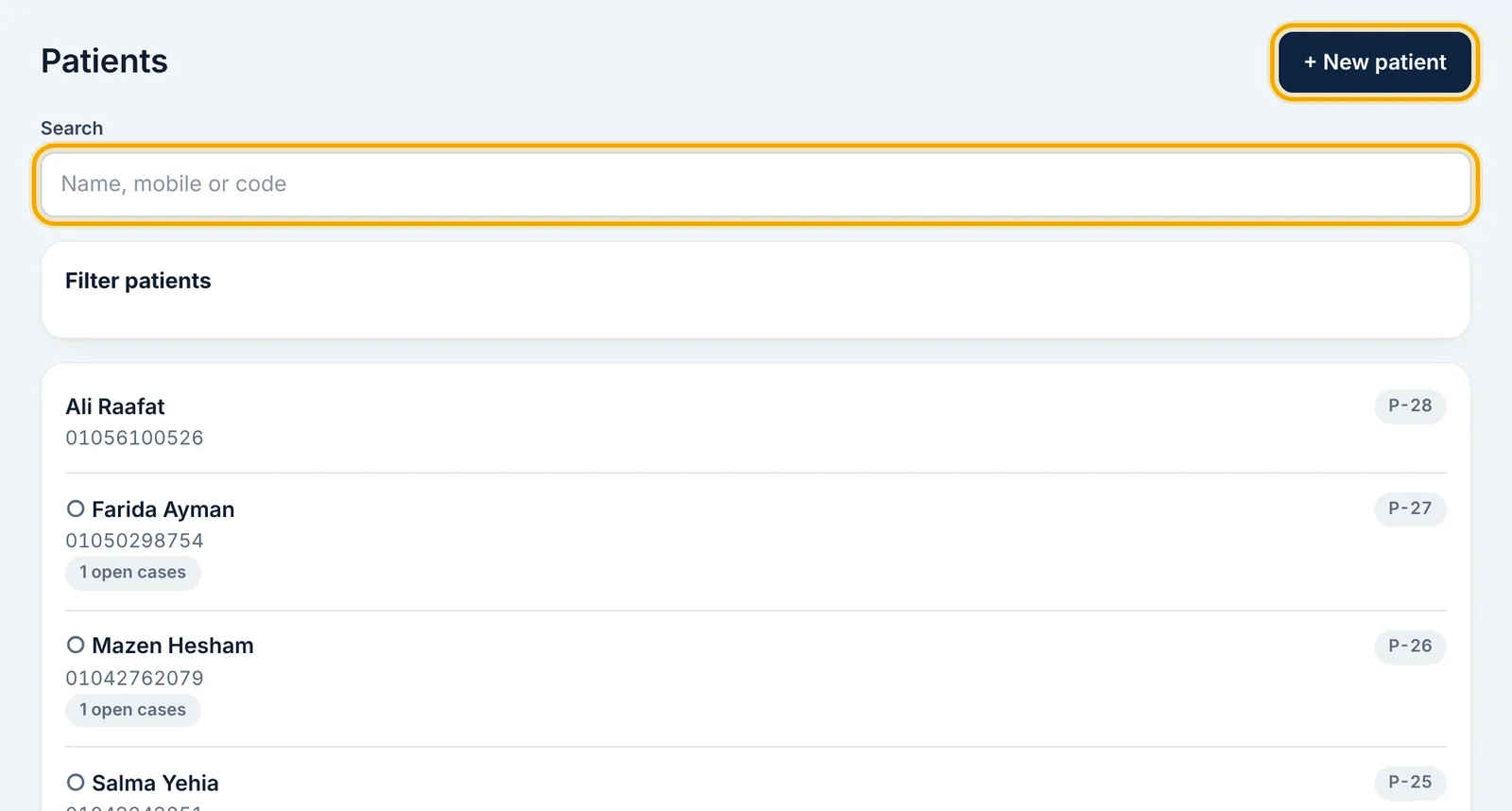
    Open «Patients» and press «+ New patient», or add the patient while booking.
  2. Search by name, mobile number, or the code shown next to each patient.

  3. Tap a patient to open their file: treatment cases, sessions, invoices and packages.
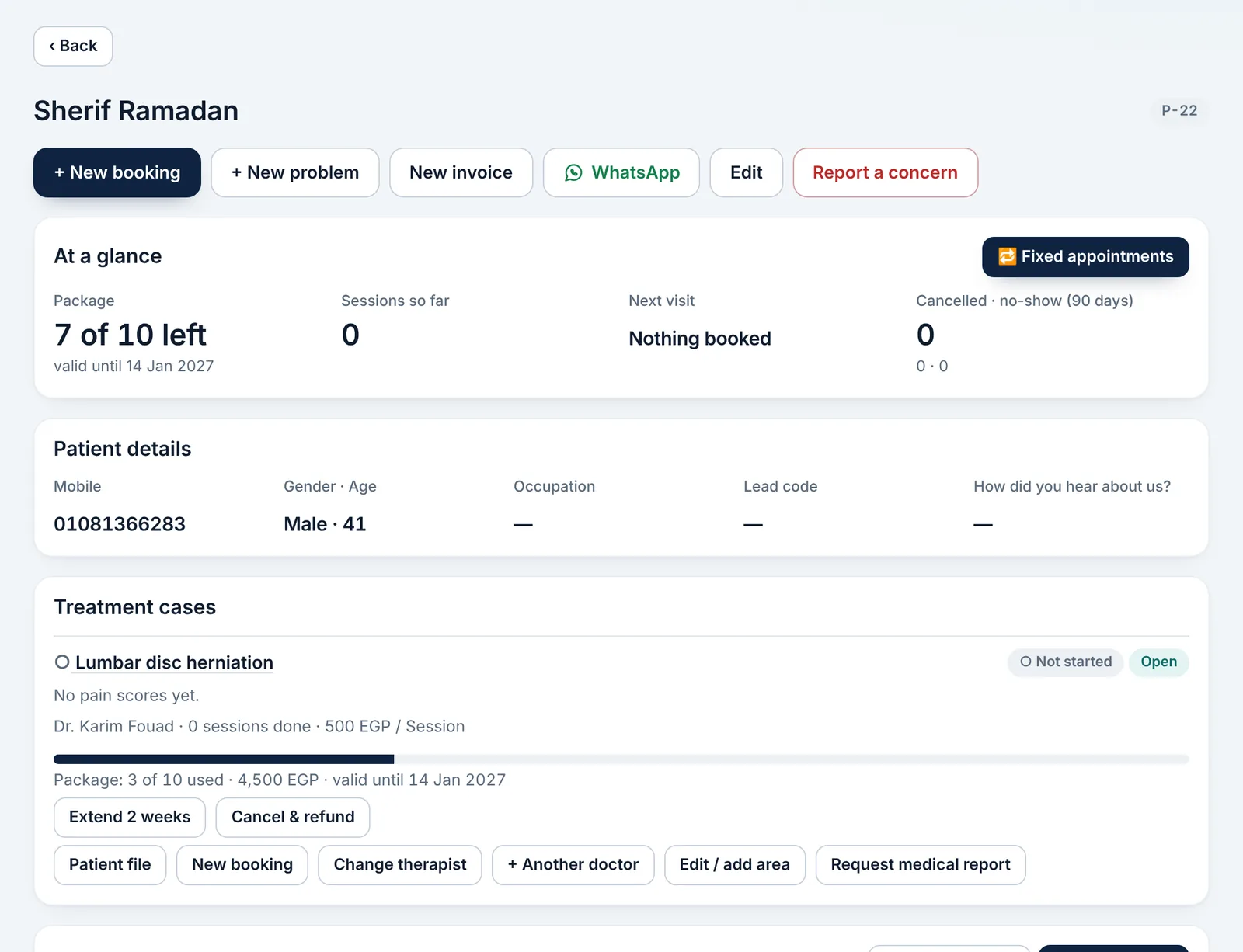
    Tap a patient to open their file: treatment cases, sessions, invoices and packages.
  4. To add a whole list at once: «?» → «Add patients from Excel», then drop the file.
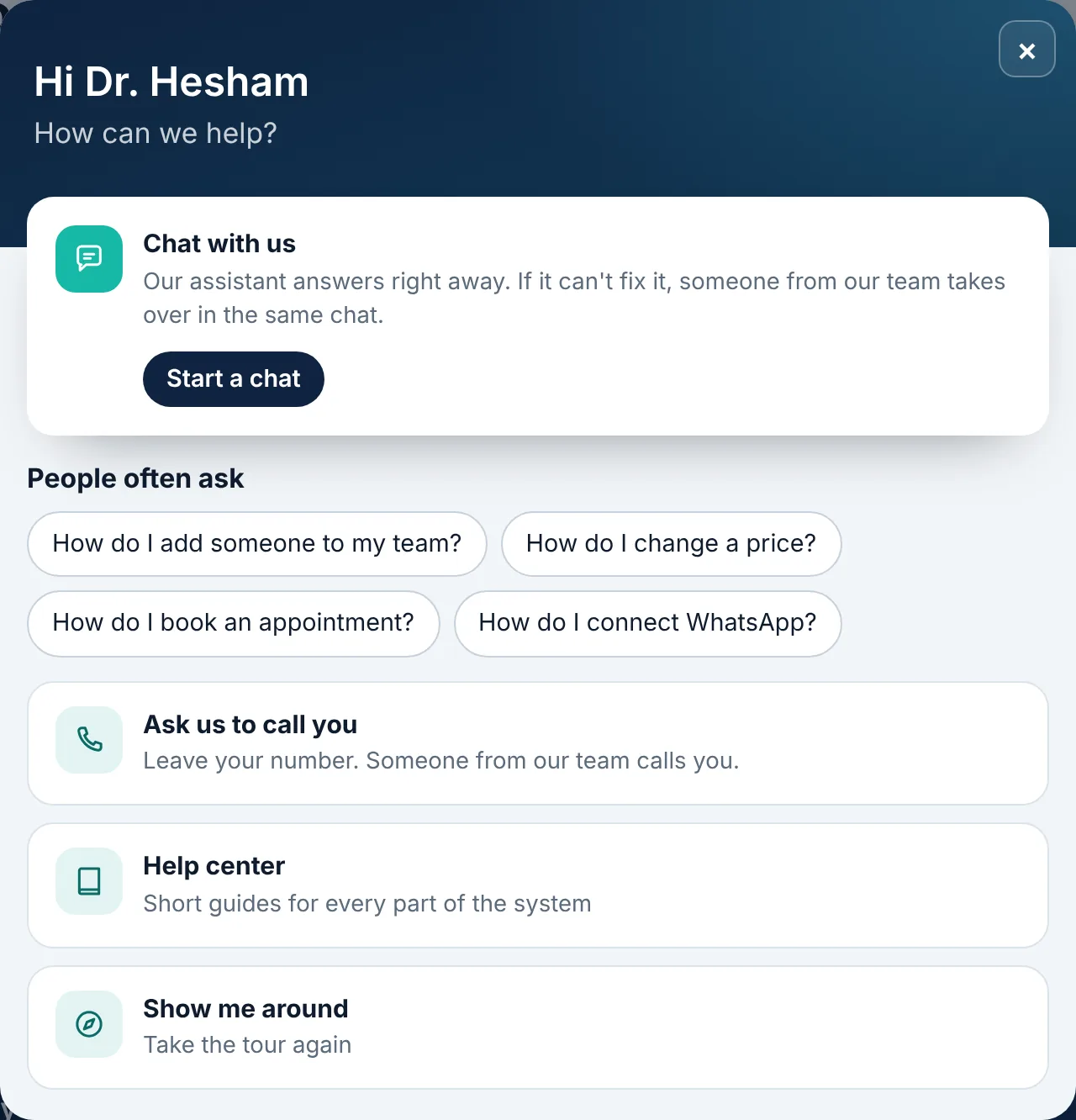
    To add a whole list at once: «?» → «Add patients from Excel», then drop the file.
  5. Check the columns (name, mobile, gender, date of birth or age), look over the first rows, then press «Add patients».
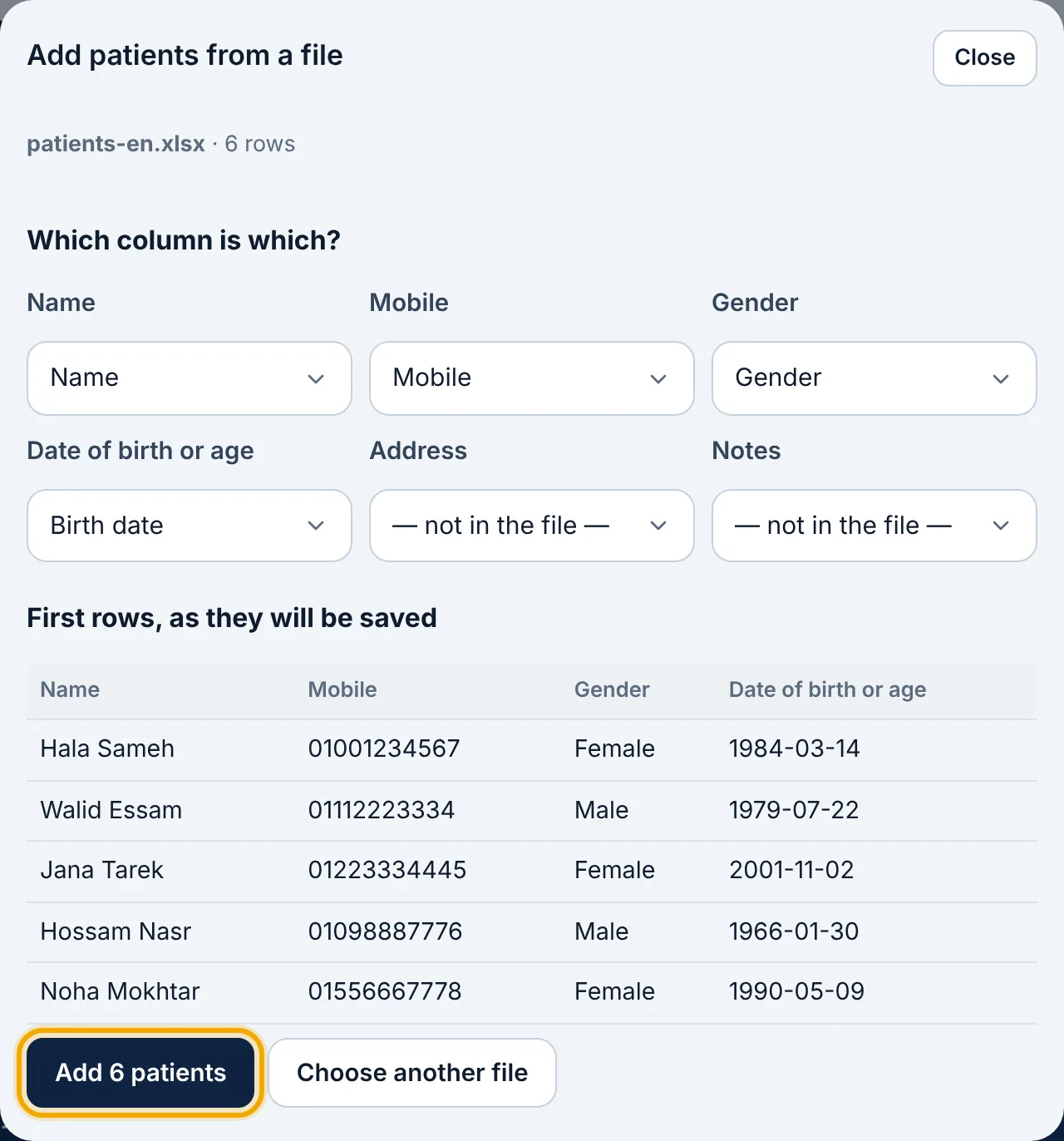
    Check the columns (name, mobile, gender, date of birth or age), look over the first rows, then press «Add patients».

Didn't find what you need?

Press «?» at the top of Ritmo, then «Chat with us». Our assistant answers right away, and our team takes over when you need a person.